
FlutterArtist Block ex1
Block is a data model designed to manage multiple ITEM(s) at the same time. It is responsible for storing and controlling the state of the ITEM(s) it manages, similar to how a table works in a database. Each Block can contain multiple Items and provides basic data operations such as create, update, and delete.
Because of its ability to manage multiple Items, Block becomes the core and most important data management unit in FlutterArtist. You will frequently use it when implementing application features that involve table-like or list-based data.
Example scenario: Demo01
In this article, we will demonstrate a basic and simple example of using the Block data model in FlutterArtist.
On the main screen of the example:
- The left side displays a list of currencies in a ListView.
- When a user selects a currency, its detailed data will be loaded and displayed in the area on the right.
This example illustrates how a Block manages a list of data, coordinating with the interface to display the list and load detailed data based on user selections.
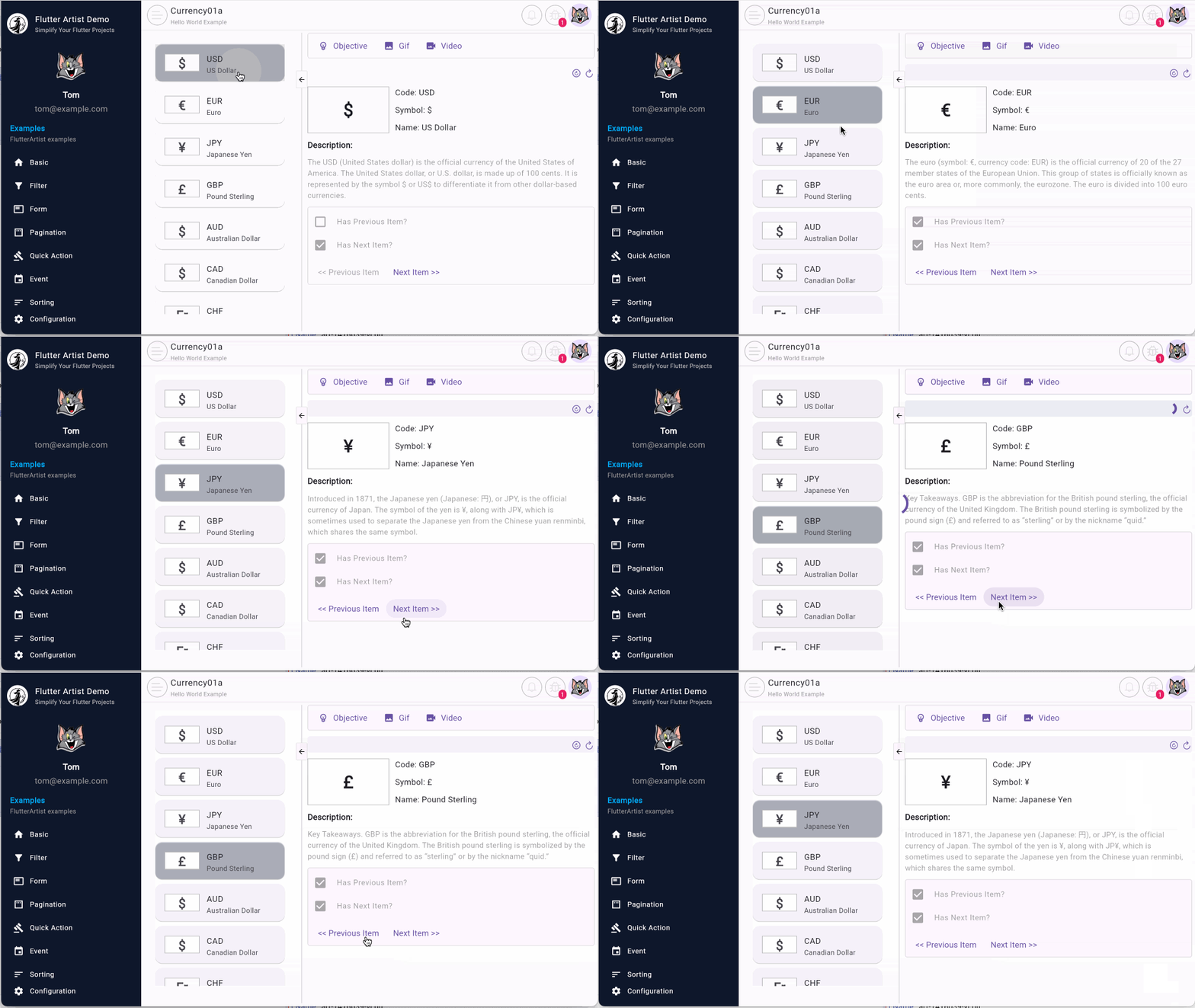
See the full source code for this example in the FlutterArtist Demo:
- Download FlutterArtist Demo
1. Structure of the example
Before we start working with the code, let's first take a look at the overall structure of this example. Each component in the structure will be explained in detail in the following sections.
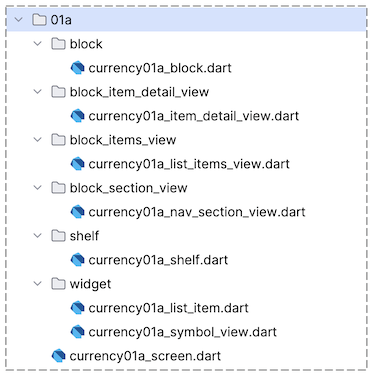
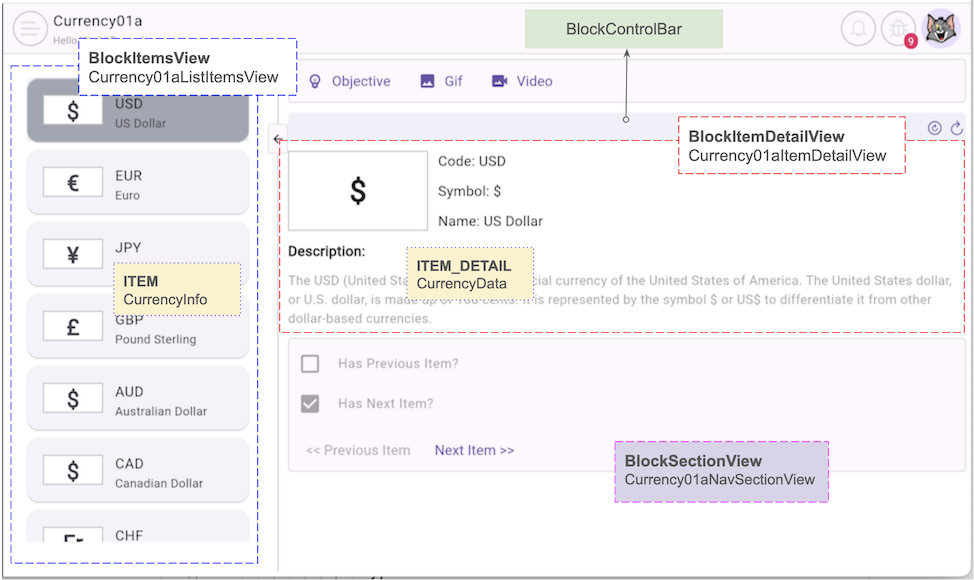
2. Currency01aShelf
In FlutterArtist, a Shelf is a functional unit within the application, such as a supplier declaration or a product declaration feature. In this example, we are creating a feature to display a list of currencies and view their details.
To better understand this example, you may want to first review some basic concepts of FlutterArtist, which are explained in the following article:
In this simple example, Currency01aShelf consists of only one Block, which is Currency01aBlock.
currency01a_shelf.dart
class Currency01aShelf extends Shelf {
  @override
  ShelfStructure defineShelfStructure() {
    return ShelfStructure(
      filterModels: {},
      blocks: [
        Currency01aBlock(
          name: Currency01aBlock.blkName,
          description: null,
          config: BlockConfig(),
          filterModelName: null,
          formModel: null,
          childBlocks: [],
        ),
      ],
    );
  }

  Currency01aBlock findCurrency01aBlock() {
    return findBlock(Currency01aBlock.blkName) as Currency01aBlock;
  }
}
No ADS
Register Currency01aShelf
Next, you need to register Currency01aShelf with FlutterArtist Storage. In essence, this is like having a new Shelf and needing to place it in Storage.
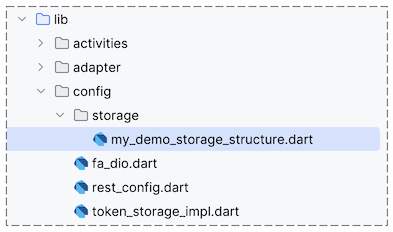
AppConfiguration (*)
class MyDemoAppConfiguration extends AppConfiguration {

  @override
  void registerShelves() {
    FlutterArtist.storage.registerShelf(() => Currency01aShelf());
    ...
  }
  ...
}After registering Currency01aShelf with FlutterArtist Storage, it can be accessed from anywhere in the application.
Currency01aShelf shelf = FlutterArtist.storage.findShelf();

Currency01aBlock currency01aBlock = shelf.findCurrency01aBlock();
3. Currency01aBlock
First, let's look at the definition of a Block and its Generic parameters.
Block
abstract class Block<
    ID extends Object,
    ITEM extends Identifiable<ID>,
    ITEM_DETAIL extends Identifiable<ID>,
    FILTER_INPUT extends FilterInput, // EmptyFilterInput
    FILTER_CRITERIA extends FilterCriteria, // EmptyFilterCriteria
    FORM_INPUT extends FormInput, // EmptyFormInput
    ADDITIONAL_FORM_RELATED_DATA extends AdditionalFormRelatedData // EmptyAdditionalFormRelatedData
    >

interface class Identifiable<ID extends Object> {
  ID get id;
}
In this example, the Filter and Form features are not used, so you can replace the Generics parameters FILTER_INPUT, FILTER_CRITERIA, FORM_INPUT and FORM_RELATED_DATA with the default types EmptyFilterInput, EmptyFilterCriteria, EmptyFormInput and EmptyFormRelatedData.
currency01a_block.dart
class Currency01aBlock
    extends
        Block<
          String, //
          CurrencyInfo,
          CurrencyData,
          EmptyFilterInput,
          EmptyFilterCriteria,
          EmptyFormInput,
          EmptyAdditionalFormRelatedData
        > {
  static const String blkName = "currency01a-block";

  final currencyRestProvider = CurrencyRestProvider();

  Currency01aBlock({
    required super.name,
    required super.description,
    required super.config,
    required super.filterModelName,
    required super.formModel,
    required super.childBlocks,
  });

  @override
  Future<ApiResult<PageData<CurrencyInfo>?>> performQuery({
    required Object? parentBlockCurrentItem,
    required EmptyFilterCriteria filterCriteria,
    required SortableCriteria sortableCriteria,
    required Pageable pageable,
  }) async {
    return await currencyRestProvider.query(pageable: pageable);
  }

  @override
  Future<ApiResult<void>> performDeleteItemById({required String itemId}) {
    throw UnimplementedError();
  }

  @override
  Future<ApiResult<CurrencyData>> performLoadItemDetailById({
    required String itemId,
  }) async {
    return await currencyRestProvider.find(currencyId: itemId);
  }

  @override
  CurrencyInfo convertItemDetailToItem({required CurrencyData itemDetail}) {
    return itemDetail.toCurrencyInfo();
  }

  @override
  bool needToKeepItemInList({
    required Object? parentBlockCurrentItemId,
    required EmptyFilterCriteria filterCriteria,
    required CurrencyData itemDetail,
  }) {
    return true;
  }

  @override
  EmptyFormInput buildInputForCreationForm({
    required Object? parentBlockCurrentItem,
    required EmptyFilterCriteria filterCriteria,
  }) {
    return EmptyFormInput();
  }

  @override
  Future<EmptyAdditionalFormRelatedData> performLoadAdditionalFormRelatedData({
    required Object? parentBlockCurrentItem,
    required CurrencyData? currentItemDetail,
    required EmptyFilterCriteria filterCriteria,
  }) async {
    return EmptyAdditionalFormRelatedData();
  }
}
Block | Currency01aBlock |
| |
No ADS
ITEM & ITEM_DETAIL
Both ITEM and ITEM_DETAIL must implement or be a derivative of the Identifiable<ID> interface. This ensures that the system can always extract their unique ID for accurate state management.
Identifiable<ID>
interface class Identifiable<ID extends Object> {
  ID get id => throw UnimplementedError();
}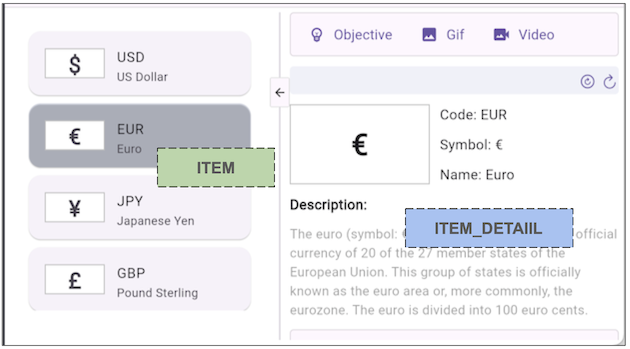
Compare the two parameters ITEM and ITEM_DETAIL:
ITEM | ITEM_DETAIL |
ITEM: In this case, CurrencyInfo, representing a currency with basic information for list display. | ITEM_DETAIL: In this case, CurrencyData, containing the full and detailed information of the currency currently selected by the user. |
CurrencyInfo class | CurrencyData class |
CurrencyInfo JSON | CurrencyData JSON |
performQuery()
performQuery()
@override
Future<ApiResult<PageData<CurrencyInfo>?>> performQuery({
required Object? parentBlockCurrentItem,
required EmptyFilterCriteria filterCriteria,
required SortableCriteria sortableCriteria,
required Pageable pageable,
}) async {
return await currencyRestProvider.query(pageable: pageable);
}The Block.performQuery() method is an abstract method that the library automatically calls whenever a user queries the Block. This method returns a list of ITEM(s) (here, CurrencyInfo) wrapped in PageData to support pagination. The returned JSON data structure will look like this:
{
"items": [
{
"id": "USD",
"name": "US Dollar",
"symbol": "$"
},
{
   "id": "EUR",
   "name": "Euro",
   "symbol": "€"
},
...
],
"pagination": {
"currentPage": 1,
"pageSize": 20,
"totalItems": 29,
"totalPages": 2
}
}
- FlutterArtist ApiResult
No ADS
performLoadItemDetailById()
When a user selects an ITEM (CurrencyInfo) from the list, the Block.performLoadItemDetailById() method is automatically called by the library to fetch the details of that ITEM. The result obtained is an ITEM_DETAIL (CurrencyData).
@override
Future<ApiResult<CurrencyData>> performLoadItemDetailById({
  required String itemId,
}) async {
  return await currencyRestProvider.find(currencyId: itemId);
}
convertItemDetailToItem()
Block.convertItemDetailToItem() is a mandatory abstract method to implement. It enables the conversion of an ITEM_DETAIL back into an ITEM. This mechanism ensures that once the latest ITEM_DETAIL is retrieved from the server, the corresponding ITEM record in the list is also synchronized and updated.
@override
CurrencyInfo convertItemDetailToItem({
  required CurrencyData itemDetail,
}) {
  return itemDetail.toCurrencyInfo();
}
Why is convertItemDetailToItem() important?
Trong thực tế, thông tin trong ITEM_DETAIL thường đầy đủ và mới nhất. Khi bạn thực hiện chuyển đổi này, FlutterArtist sẽ thực hiện một quy trình "hợp nhất" dữ liệu ngầm định:
- Ensuring Consistency: If the user changes data on the detail screen, the basic information in the outer list (such as the name or currency symbol) must also update accordingly without needing to reload the entire list.
- Memory Optimization: Instead of managing two independent data sources, the Block uses this conversion result to overwrite the old ITEM, keeping the application state in absolute sync.
- Seamless UX: Users will see data updated instantly everywhere on the UI as soon as the detail fetching action is completed.
4. Currency01aListItemsView
Currency01aListItemsView is a class that extends BlockItemsView, designed to display the Block's ITEM(s) on the user interface.
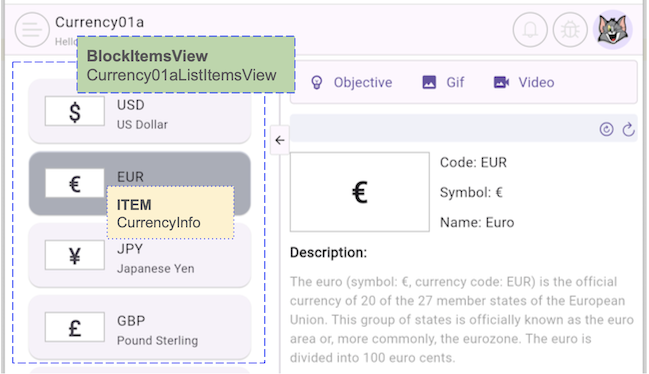
Note: Instead of creating a class extending BlockItemsView, you could directly use the BlockItemsViewBuilder class. However, writing a dedicated class extending BlockItemsView is recommended as it makes your project structure cleaner and more maintainable.
currency01a_list_items_view.dart
class Currency01aListItemsView extends BlockItemsView<Currency01aBlock> {
  const Currency01aListItemsView({required super.block, super.key});

  @override
  Widget buildContent(BuildContext context) {
    List<CurrencyInfo> currencyInfos = block.items;
    //
    return ListView(
      padding: const EdgeInsets.all(5),
      children: currencyInfos
          .map(
            (item) => Currency01aListItem(
              currencyInfo: item,
              selected: block.isCurrentItem(item),
              onCurrencyPressed: _onCurrencyPressed,
            ),
          )
          .toList(),
    );
  }

  Future<void> _onCurrencyPressed(CurrencyInfo currencyInfo) async {
    // Write Log:
    FlutterArtist.codeFlowLogger.addMethodCall(
      ownerClassInstance: this,
      currentStackTrace: StackTrace.current,
      parameters: null,
    );
    // IMPORTANT:
    // - Call this method when the user clicks on an ITEM in the list.
    await block.refreshItemAndSetAsCurrent(item: currencyInfo);
  }
}
User interface customization capabilities:
You can display the ITEM(s) list on a ListView, GridView, Table, or any custom Widget of your choice. This is straightforward once you have access to the current list of ITEM(s) from the Block:
//
// IMPORTANT: All ITEM(s) in Currency01aBlock:
//
List<CurrencyInfo> currencyInfos = block.items;
refreshItemAndSetAsCurrent()
Every time a user clicks on an ITEM (CurrencyInfo) in the list, you must call the Block.refreshItemAndSetAsCurrent() method.
Future<void> _onCurrencyPressed(CurrencyInfo currencyInfo) async {
  // Write Log:
  FlutterArtist.codeFlowLogger.addMethodCall(
    ownerClassInstance: this,
    currentStackTrace: StackTrace.current,
    parameters: null,
  );
  // IMPORTANT:
  // - Call this method when the user clicks on an ITEM in the list.
  await block.refreshItemAndSetAsCurrent(item: currencyInfo);
}
See the article for an explanation of how the application works when the Block.refreshItemAndSetAsCurrent() method is called.
- FlutterArtist Block.refreshItemAndSetAsCurrent()
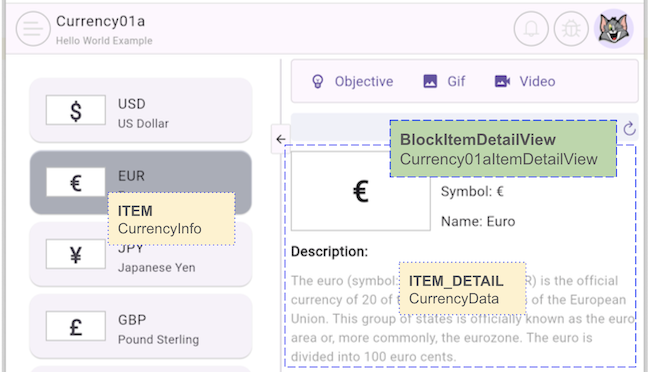
5. Currency01aItemDetailView
Currency01aItemDetailView is a class that extends BlockItemDetailView, designed to display the ITEM_DETAIL (CurrencyData) on the user interface.
No ADS
Note: Just like the list view, instead of creating a class extending BlockItemDetailView, you could directly use the BlockItemDetailViewBuilder class. However, writing a dedicated class extending BlockItemDetailView is still encouraged as it makes your project structure professional, clean, and maintainable.
currency01a_item_detail_view.dart
class Currency01aItemDetailView extends BlockItemDetailView<Currency01aBlock> {
  const Currency01aItemDetailView({super.key, required super.block});

  @override
  Widget buildContent(BuildContext context) {
    // IMPORTANT:
    CurrencyData? currencyData = block.currentItemDetail;

    return Column(
      mainAxisAlignment: MainAxisAlignment.start,
      crossAxisAlignment: CrossAxisAlignment.start,
      children: [
        Row(
          mainAxisAlignment: MainAxisAlignment.start,
          crossAxisAlignment: CrossAxisAlignment.start,
          children: [
            Currency01aSymbolView(
              symbol: currencyData?.symbol,
              width: 140,
              height: 80,
              fontSize: 30,
            ),
            SizedBox(width: 10),
            Expanded(
              child: Column(
                mainAxisAlignment: MainAxisAlignment.start,
                crossAxisAlignment: CrossAxisAlignment.start,
                children: [
                  Text("Code: ${currencyData?.id ?? ' - '}"),
                  SizedBox(height: 10),
                  Text("Symbol: ${currencyData?.symbol ?? ' - '}"),
                  SizedBox(height: 10),
                  Text("Name: ${currencyData?.name ?? ' - '}"),
                ],
              ),
            ),
          ],
        ),
        SizedBox(height: 10),
        Text("Description:", style: TextStyle(fontWeight: FontWeight.bold)),
        SizedBox(height: 10),
        Text(
          currencyData?.description ?? "",
          style: TextStyle(color: Colors.black38, fontSize: 13),
        ),
      ],
    );
  }
}
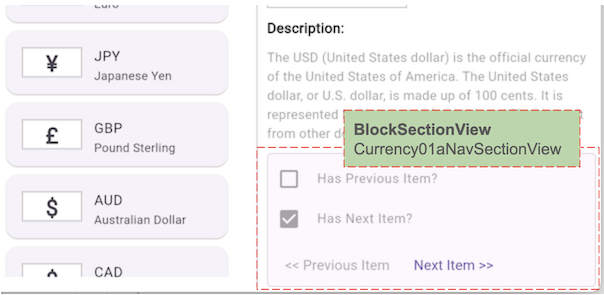
6. Currency01aNavSectionView
Custom buttons that allow users to interact with the Block — such as refreshing the current ITEM or selecting the next ITEM — should be written in a class extending BlockSectionView or by using the BlockSectionViewBuilder class directly.
currency01a_nav_section_view.dart
class Currency01aNavSectionView extends BlockSectionView<Currency01aBlock> {
  const Currency01aNavSectionView({super.key, required super.block});

  @override
  Widget buildContent(BuildContext context) {
    return CustomAppContainer(
      padding: EdgeInsets.all(5),
      width: double.maxFinite,
      child: Column(
        mainAxisAlignment: MainAxisAlignment.start,
        crossAxisAlignment: CrossAxisAlignment.start,
        children: [
          CheckboxListTile(
            value: block.hasPreviousItem,
            onChanged: null,
            dense: true,
            title: Text("Has Previous Item?"),
            controlAffinity: ListTileControlAffinity.leading,
            contentPadding: EdgeInsets.zero,
          ),
          CheckboxListTile(
            value: block.hasNextItem,
            onChanged: null,
            dense: true,
            title: Text("Has Next Item?"),
            controlAffinity: ListTileControlAffinity.leading,
            contentPadding: EdgeInsets.zero,
          ),
          SizedBox(height: 10),
          Row(
            children: [
              TextButton(
                onPressed: block.hasPreviousItem
                    ? _navigateToPreviousItem
                    : null,
                child: Text("<< Previous Item"),
              ),
              TextButton(
                onPressed: block.hasNextItem ? _navigateToNextItem : null,
                child: Text("Next Item >>"),
              ),
            ],
          ),
        ],
      ),
    );
  }

  Future<void> _navigateToPreviousItem() async {
    FlutterArtist.codeFlowLogger.addMethodCall(
      ownerClassInstance: this,
      currentStackTrace: StackTrace.current,
      parameters: null,
    );
    // IMPORTANT: Call with await.
    await block.refreshPreviousItemAndSetAsCurrent();
  }

  Future<void> _navigateToNextItem() async {
    FlutterArtist.codeFlowLogger.addMethodCall(
      ownerClassInstance: this,
      currentStackTrace: StackTrace.current,
      parameters: null,
    );
    // IMPORTANT: Call with await.
    await block.refreshNextItemAndSetAsCurrent();
  }
}
Some useful methods of Block:
bool get hasPreviousItem;
bool get hasNextItem;

Future<BlockItemCurrSelectionResult<ITEM>?> refreshItemAndSetAsCurrent({
  required ITEM item,
  bool forceLoadForm = false,
  Function()? navigate,
})

Future<BlockItemCurrSelectionResult<ITEM>?>
    refreshPreviousItemAndSetAsCurrent({
  bool forceLoadForm = false,
  Function()? navigate,
})

Future<BlockItemCurrSelectionResult<ITEM>?>
    refreshNextItemAndSetAsCurrent({
  bool forceLoadForm = false,
  Function()? navigate,
})
7. How Block Works
Trong FlutterArtist, Block đóng vai trò là một mô hình dữ liệu. Để hiển thị mô hình này lên giao diện người dùng, bạn có thể sử dụng một trong các ContextProviderView(s) dưới đây:
- BlockItemsView / BlockItemsViewBuilder
- BlockItemDetailView / BlockItemDetailViewBuilder
- BlockSectionView / BlockSectionViewBuilder
- BlockControlBar
No ADS
The unique feature lies in the automatic trigger mechanism: When a user opens the Currency01aScreen, the appearance of any of the aforementioned ContextProviderView(s) will automatically trigger the Block query. The block.performQuery() method is called immediately if the Block's current state is pending or error.
This mechanism ensures you don't have to worry about writing code to "call data loading" in constructors or Widget lifecycles. Everything happens naturally and in sync with the application state.
To gain a deeper understanding of how these Views interact with data and the various states of a Block, please refer to the following detailed articles:
- FlutterArtist Block DataState
No ADS
FlutterArtist
- FlutterArtist Debug Network Inspector
- Basic concepts in Flutter Artist
- FlutterArtist Block ex1
- FlutterArtist Filter Example
- FlutterArtist FilterModel MultiOptFilterCriterion ex1
- FlutterArtist FilterInput Example 1
- FlutterArtist Form ex1
- The idea of designing filter models in FlutterArtist
- FlutterArtist FormModel.patchFormFields() Ex1
- FlutterArtist BlockQuickItemUpdateAction Example
- FlutterArtist BlockNumberPagination Ex1
- FlutterArtist GridView Infinite Scroll Example
- FlutterArtist BlockBackendAction Create Multi Items (Example)
- FlutterArtist ListView Infinite Scroll Pagination Example
- FlutterArtist Pagination
- FlutterArtist Sort DropdownSortPanel Example
- FlutterArtist Dio
- FlutterArtist BlockBackendAction Example
- FlutterArtist BackgroundWebDownloadAction Example
- FlutterArtist StorageBackendAction ex1
- FlutterArtist Block External Shelf Event Example
- FlutterArtist Filter FormBuilderMultiDropDown Ex1
- FlutterArtist Master-detail Blocks ex1
- FlutterArtist Scalar ex1
- FlutterArtist Pagination Davi table Infinite Scroll Ex1
- FlutterArtist Filter Tree FormBuilderField ex1
- FlutterArtist Filter FormBuilderRadioGroup ex1
- FlutterArtist Form Parent-child MultiOptFormProp ex1
- FlutterArtist Manual Sorting ReorderableGridView Example
- FlutterArtist Manual Sorting ReorderableListView
- FlutterArtist Scalar External Shelf Event Example
- FlutterArtist Code Flow Inspector
- FlutterArtist Projections
- FlutterArtist Debug Log Viewer
- FlutterArtist start
- FlutterArtist AppConfiguration
- FlutterArtist Debug App Inspector
- FlutterArtist Debug Filter Criteria Inspector
- FlutterArtist Debug Filter Model Inspector
- FlutterArtist Debug Form Model Inspector
- FlutterArtist DebugMenu
- FlutterArtist Debug UI Context Inspector
- FlutterArtist Debug Shelf Structure Inspector
- FlutterArtist Context Provider Views
- FlutterArtist FilterModelStructure ex1
- FlutterArtist FilterModelStructure ex2
- FlutterArtist FilterModelStructure ex3
- FlutterArtist Internal Shelf Event ex1
- FlutterArtist Deferring External Shelf Events Example
- FlutterArtist Face
- Overview of FlutterArtist Theme
- FlutterArtist Theme Design Tokens Architecture
- FlutterArtist Themes FaColorUtils
- Flutter Artist Theme - Create a custom theme
Show More