
FlutterArtist Scalar ex1
Scalar is a data model consisting of a single, consistent value that cannot be directly modified from the UI. It is typically used to manage aggregated data blocks or complex reports.
Scalar
abstract class Scalar<
    VALUE extends Object,
    FILTER_INPUT extends FilterInput,
    FILTER_CRITERIA extends FilterCriteria
    >
Imagine a report on the top 10 best-selling products in Q1: that entire list of 10 products, along with quantities sold and revenue, is encapsulated into a single data block within a Scalar.
An example of Scalar's value
{
  "timeFrame": "Q1/2026",
  "bestSellings": [
     {
       "productId": 1,
       "productName": "Cocacola",
       "qty": 1000,
       "amount": 10000,
     },
     {
       "productId": 2,
       "productName": "Pepsi",
       "qty": 1200,
       "amount": 12000,
     },
     ...
  ]
}
Unlike a Block, a Scalar does not provide methods for users to directly update individual data parts. Data within a Scalar is "immutable" at any given moment. When system changes occur (such as Backend activities), the entire Scalar value is completely refreshed through a new query.
Example scenario: Demo70a
In this article, we will implement a simple Scalar example where its value is a system report including: employee count, product count, supplier count, and more. The main screen of the example will display this aggregated information.
The JSON data structure for this report will be:
Scalar value
{
   "categoryCount": 3,
   "employeeCount": 20,
   "noteCount": 9,
   "productCount": 18,
   "supplierCount": 6,
   "saleOrderCount": 301
}
- Download FlutterArtist Demo
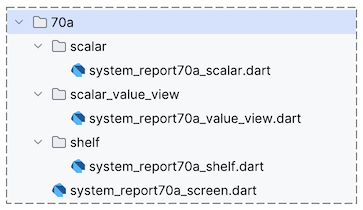
2. SystemReport70aShelf
The Shelf structure in this example is very simple, consisting of only a single Scalar. Instead of containing Blocks as in previous examples, we declare SystemReport70aScalar within the scalars list.
system_report70a_shelf.dart
class SystemReport70aShelf extends Shelf {
  @override
  ShelfStructure defineShelfStructure() {
    return ShelfStructure(
      filterModels: {},
      blocks: [],
      scalars: [
        SystemReport70aScalar(
          name: SystemReport70aScalar.scalarName,
          description: '',
          filterModelName: null,
          config: ScalarConfig(),
        ),
      ],
    );
  }

  SystemReport70aScalar findSystemReport70aScalar() {
    return findScalar(SystemReport70aScalar.scalarName)
        as SystemReport70aScalar;
  }
}
No ADS
Registering the Shelf
Don't forget to register your SystemReport70aShelf with FlutterArtist Storage. Basically, this is like having just acquired a new Shelf and placing it into your Storage for centralized management.
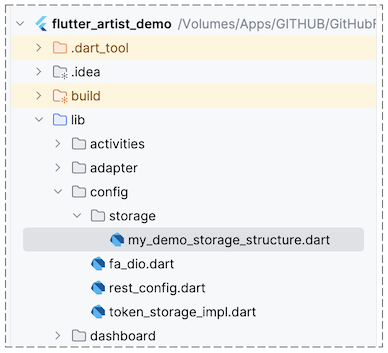
MyDemoAppConfiguration (***)
class MyDemoAppConfiguration extends AppConfiguration {

  @override
  void registerShelves() {
    FlutterArtist.storage.registerShelf(() => SystemReport70aShelf());
    ...
  }
  ...
}
Once the Shelf is successfully registered, you can access it and its components (like the Scalar) from anywhere in the application via the Storage:
SystemReport70aShelf shelf = FlutterArtist.storage.findShelf();
final SystemReport70aScalar scalar = shelf.findSystemReport70aScalar();3. SystemReport70aScalar
Just like a Block, a Scalar is an abstract class with several Generics parameters. In this simple example, the Filter feature is not used, so the FILTER_INPUT and FILTER_CRITERIA parameters play no role. You can simply replace them with the default types: EmptyFilterInput and EmptyFilterCriteria.
| |
Here is the specific implementation for SystemReport70aScalar:
system_report70a_scalar.dart
class SystemReport70aScalar extends Scalar<
    SystemReportData, // VALUE
    EmptyFilterInput,
EmptyFilterCriteria> {
static const scalarName = "system-report70a-scalar";
final systemReportRestProvider = SystemReportRestProvider();
SystemReport70aScalar({
required super.name,
required super.description,
required super.config,
required super.filterModelName,
}) : super(childScalars: const []);
@override
Future<ApiResult<SystemReportData>> performQuery({
required Object? parentScalarValue,
required EmptyFilterCriteria filterCriteria,
}) async {
return await systemReportRestProvider.query();
}
}No ADS
Scalar.performQuery()
Scalar.performQuery() is an abstract method that will be automatically called by the library when the user queries the Scalar.
// Abstract method:
Future<ApiResult<VALUE>> performQuery({
  required Object? parentScalarValue,
  required FILTER_CRITERIA filterCriteria,
});

// Implements:
@override
Future<ApiResult<SystemReportData>> performQuery({
  required Object? parentScalarValue,
  required EmptyFilterCriteria filterCriteria,
}) async {
  return await systemReportRestProvider.query();
}
This method returns a VALUE (a Dart object) with any data structure according to your needs. In this example, the returned result is an object containing system report metrics:
{
   "categoryCount": 3,
   "employeeCount": 20,
   "noteCount": 9,
   "productCount": 18,
   "supplierCount": 6,
   "saleOrderCount": 301
}
4. SystemReport70aValueView
SystemReport70aValueView is a class that extends ScalarValueView, designed to intuitively display the Scalar's VALUE on the user interface.
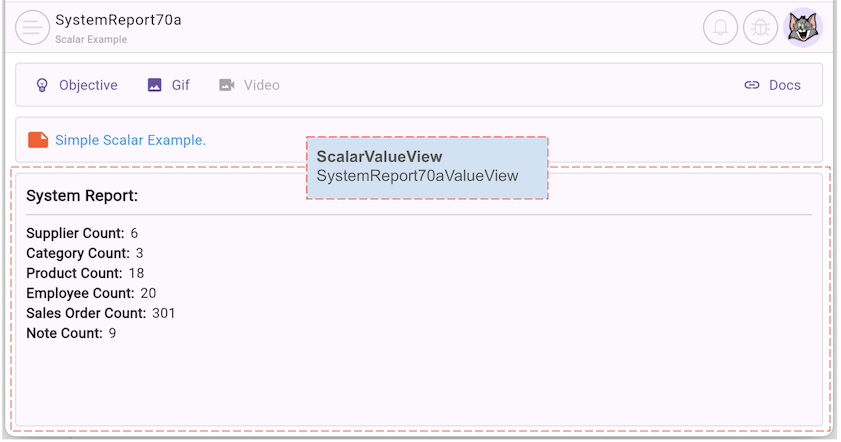
Note: Instead of creating a class extending ScalarValueView, you could directly use the ScalarValueViewBuilder class. However, writing a dedicated class extending ScalarValueView is recommended as it makes your project cleaner, well-structured, and easier to understand.
system_report70a_value_view.dart
class SystemReport70aValueView extends ScalarValueView<SystemReport70aScalar> {
  const SystemReport70aValueView({
    super.key,
    required super.scalar,
  });

  @override
  Widget buildContent(BuildContext context) {
    SystemReportData? systemReportData = scalar.value;

    return CustomAppContainer(
      padding: EdgeInsets.all(10),
      width: double.maxFinite,
      child: Column(
        crossAxisAlignment: CrossAxisAlignment.start,
        mainAxisAlignment: MainAxisAlignment.start,
        children: [
          Text(
            "System Report:",
            style: TextStyle(
              fontWeight: FontWeight.bold,
              fontSize: 16,
            ),
          ),
          Divider(),
          IconLabelText(
              label: "Supplier Count: ",
              text: systemReportData?.supplierCount.toString() ?? ""),
          IconLabelText(
              label: "Category Count: ",
              text: systemReportData?.categoryCount.toString() ?? ""),
          IconLabelText(
              label: "Product Count: ",
              text: systemReportData?.productCount.toString() ?? ""),
          IconLabelText(
              label: "Employee Count: ",
              text: systemReportData?.employeeCount.toString() ?? ""),
          IconLabelText(
              label: "Sales Order Count: ",
              text: systemReportData?.saleOrderCount.toString() ?? ""),
          IconLabelText(
              label: "Note Count: ",
              text: systemReportData?.noteCount.toString() ?? ""),
        ],
      ),
    );
  }
}
In the simple example above, we used ScalarValueView to display report data. However, in real-world applications, you can also use it in combination with ScalarSectionView to display content related to the Scalar.
Similar to ScalarValueView, ScalarSectionView is a UI component closely linked to a Scalar data model. It is used to display supplemental content related to the Scalar, such as descriptions, notes, or custom action buttons.
Conceptually, both ScalarSectionView and ScalarValueView aim to display information related to the Scalar. The key difference lies in their intended use: ScalarValueView focuses on rendering the actual VALUE of the Scalar, whereas ScalarSectionView is designed to present supplemental or contextual content surrounding that data model.
No ADS
FlutterArtist
- FlutterArtist Debug Network Inspector
- Basic concepts in Flutter Artist
- FlutterArtist Block ex1
- FlutterArtist Filter Example
- FlutterArtist FilterModel MultiOptFilterCriterion ex1
- FlutterArtist FilterInput Example 1
- FlutterArtist Form ex1
- The idea of designing filter models in FlutterArtist
- FlutterArtist FormModel.patchFormFields() Ex1
- FlutterArtist BlockQuickItemUpdateAction Example
- FlutterArtist BlockNumberPagination Ex1
- FlutterArtist GridView Infinite Scroll Example
- FlutterArtist BlockBackendAction Create Multi Items (Example)
- FlutterArtist ListView Infinite Scroll Pagination Example
- FlutterArtist Pagination
- FlutterArtist Sort DropdownSortPanel Example
- FlutterArtist Dio
- FlutterArtist BlockBackendAction Example
- FlutterArtist BackgroundWebDownloadAction Example
- FlutterArtist StorageBackendAction ex1
- FlutterArtist Block External Shelf Event Example
- FlutterArtist Filter FormBuilderMultiDropDown Ex1
- FlutterArtist Master-detail Blocks ex1
- FlutterArtist Scalar ex1
- FlutterArtist Pagination Davi table Infinite Scroll Ex1
- FlutterArtist Filter Tree FormBuilderField ex1
- FlutterArtist Filter FormBuilderRadioGroup ex1
- FlutterArtist Form Parent-child MultiOptFormProp ex1
- FlutterArtist Manual Sorting ReorderableGridView Example
- FlutterArtist Manual Sorting ReorderableListView
- FlutterArtist Scalar External Shelf Event Example
- FlutterArtist Code Flow Inspector
- FlutterArtist Projections
- FlutterArtist Debug Log Viewer
- FlutterArtist start
- FlutterArtist AppConfiguration
- FlutterArtist Debug App Inspector
- FlutterArtist Debug Filter Criteria Inspector
- FlutterArtist Debug Filter Model Inspector
- FlutterArtist Debug Form Model Inspector
- FlutterArtist DebugMenu
- FlutterArtist Debug UI Context Inspector
- FlutterArtist Debug Shelf Structure Inspector
- FlutterArtist Context Provider Views
- FlutterArtist FilterModelStructure ex1
- FlutterArtist FilterModelStructure ex2
- FlutterArtist FilterModelStructure ex3
- FlutterArtist Internal Shelf Event ex1
- FlutterArtist Deferring External Shelf Events Example
- FlutterArtist Face
- Overview of FlutterArtist Theme
- FlutterArtist Theme Design Tokens Architecture
- FlutterArtist Themes FaColorUtils
- Flutter Artist Theme - Create a custom theme
Show More